Home / AI for Makers / Flatlay Photo Carousel
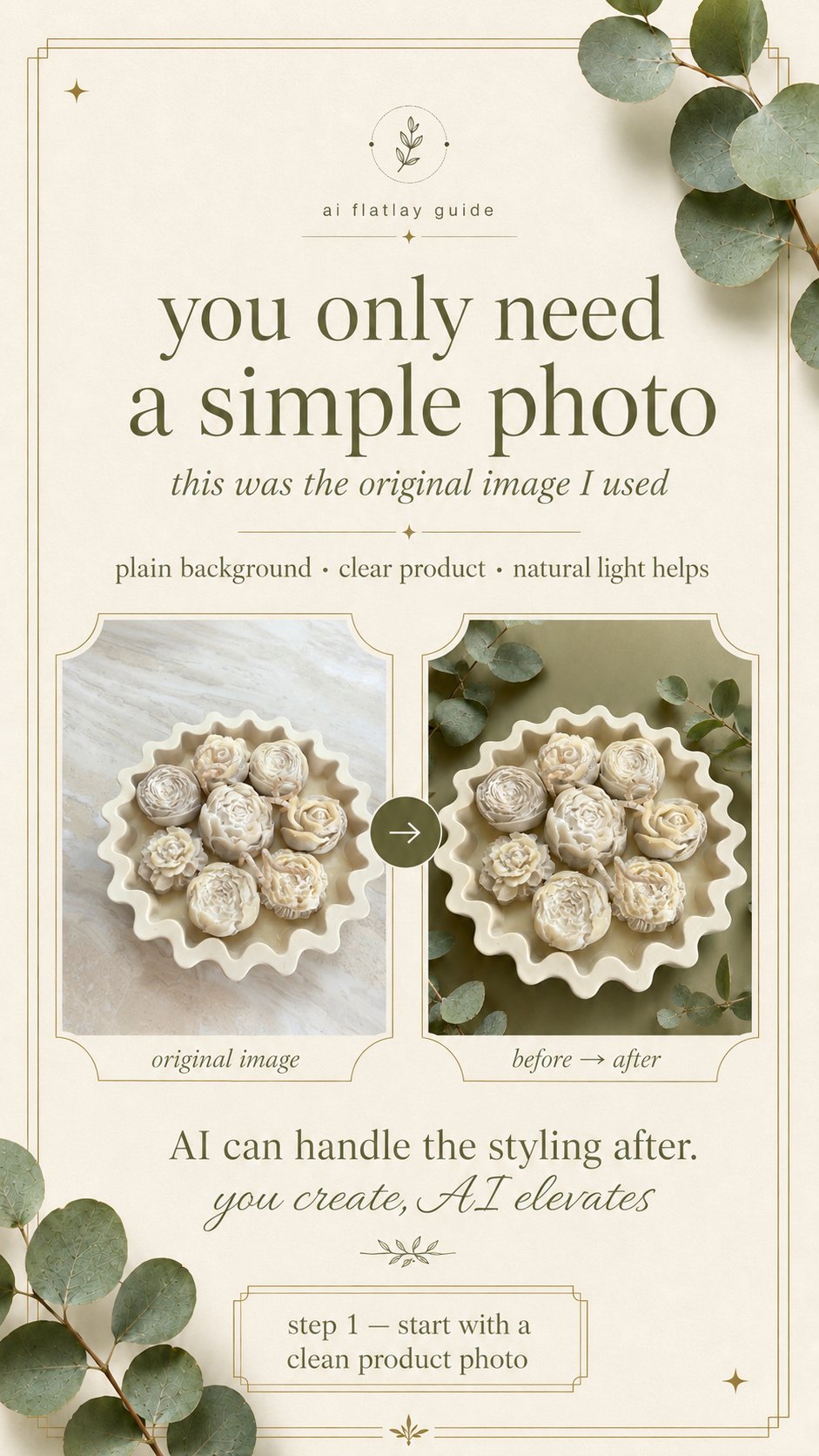
Turn one product photo into a styled flatlay carousel
You create, AI elevates.
One clean photo of your candles or melts can become a polished, on-brand flatlay — and a carousel worth saving. This guide walks through the exact steps and the layered prompt I use to style a shot with AI, while keeping the real product looking like itself.
Inside the guide
- 1.Start with one clear product photo — plain background, top-down or slightly angled, good natural light.
- 2.Build your prompt in layers — what it is, camera angle, background colour, styling props, lighting and lens detail.
- 3.Use AI to elevate, not invent — better lighting and cleaner backgrounds, never a product you don't sell.
- 4.Share it as a carousel — easier to save, swipe through and come back to.
Place this candle bowl in a professional studio-style flatlay setting, with the background in my brand colour (enter the brand colour you want here) and soft eucalyptus stems to complement the image. Keep the product shape realistic and true to the original photo, use soft natural lighting, a clean luxury styling feel, and a macro lens to capture fine detail.
Use AI for
- ✦ Better lighting
- ✦ Cleaner backgrounds
- ✦ Soft styling
- ✦ Short product videos
Not for
- ✕ Changing the product
- ✕ Changing the wax colour
- ✕ Adding packaging you don't sell
- ✕ Showing a style that isn't yours
Elevate, don't invent.
Download the guideFree · 6-slide carousel · PDF
Tip: the more specific your prompt, the better the result — and always keep the real product true to what you actually sell.